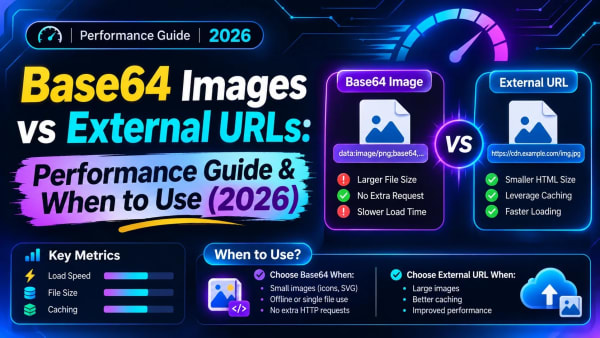
What is Base64 Image Encoding?
Base64 is a binary-to-text encoding scheme that translates binary image data into an ASCII string. Instead of serving an image as a separate file over HTTP, Base64 allows you to embed image bytes directly inside HTML, CSS, JSON, or JavaScript source code.
Each Base64 character represents exactly 6 bits of data. When you convert an image, the browser encodes 24-bit binary chunks into 4 ASCII characters from a standard 64-character alphabet, eliminating external network requests for small graphics.
Dual Modes: Image Encoder and Base64 Decoder
This tool provides complete bidirectional functionality. You can convert graphic files into embedded strings, or take raw Base64 data and reconstruct the original visual image with one click.
In Encode Mode, drop any PNG, JPG, WebP, SVG, GIF, ICO, or BMP file. The tool instantly outputs a formatted Data URI, raw Base64 string, HTML tag, or CSS background snippet.
In Decode Mode, paste any Base64 string or Data URI. The tool automatically detects image headers, calculates dimensions, renders a live visual preview, and provides a direct download button.
Common Image Formats and Data URI Prefixes
A standard Base64 Data URI consists of four segments: the data: scheme, the MIME type, the ;base64 token, and the encoded payload. The table below lists common image formats with their respective Data URI headers.
| Image Format | MIME Type | Data URI Header Prefix | Magic Header Bytes |
|---|---|---|---|
| PNG Image | image/png | data:image/png;base64, | iVBORw0KGgo |
| JPEG / JPG | image/jpeg | data:image/jpeg;base64, | /9j/ |
| WebP Image | image/webp | data:image/webp;base64, | UklGR |
| SVG Vector | image/svg+xml | data:image/svg+xml;base64, | PHN2Zy / PD94bW |
| GIF Animation | image/gif | data:image/gif;base64, | R0lGOD |
| ICO Favicon | image/x-icon | data:image/x-icon;base64, | AAABAA |
Base64 Size Overhead: Why Does File Size Increase?
Because Base64 represents 3 binary bytes (24 bits) using 4 ASCII characters (32 bits), the encoded string is mathematically 33% larger than the original binary file. If your PNG file is 10 KB, its Base64 string will be roughly 13.3 KB.
While this overhead increases payload size, it saves an entire HTTP round-trip request. For small UI icons, badges, and inline email assets, the latency saved by skipping an HTTP handshake easily outweighs the minor size difference.
| Original File Size | Base64 Encoded Size | Size Overhead | Recommended Usage |
|---|---|---|---|
| 1 KB (Favicon / Micro Icon) | 1.33 KB | +33% | Optimal for inline HTML/CSS embedding |
| 5 KB (UI Badge / Social Logo) | 6.65 KB | +33% | Recommended for HTML email templates |
| 20 KB (Small Illustration) | 26.6 KB | +33% | Borderline. Use only if HTTP latency is high |
| 100 KB+ (Full Photograph) | 133 KB+ | +33% | Not recommended. Use WebP compression instead |
How to Use Base64 Images in Web Development
Once you encode an image, you can paste the resulting Data URI directly into various web development contexts. Here are four practical code implementations:
1. Direct HTML Image Tag
Embed the Data URI straight into the src attribute of an image tag. This is ideal for single-page applications or offline documentation:
<img src="data:image/png;base64,iVBORw0KGgoAAAANSUhEUgAA..." alt="App Icon" width="64" height="64" />2. Inline CSS Background Image
Prevent flash of unstyled content (FOUC) by embedding critical UI icons directly in your stylesheet:
.button-icon {
  width: 20px;
  height: 20px;
  background-image: url("data:image/svg+xml;base64,PHN2ZyB4bWxucz0...");
  background-size: contain;
  background-repeat: no-repeat;
}
3. Client-Side JavaScript Encoding with FileReader
To convert user files to Base64 in JavaScript without external libraries, use the standard FileReader API:
function fileToBase64(file) {
  return new Promise((resolve, reject) => {
    const reader = new FileReader();
    reader.onload = () => resolve(reader.result);
    reader.onerror = (error) => reject(error);
    reader.readAsDataURL(file);
  });
}
4. Decoding Base64 Back to an Image Blob
To convert a Base64 string back into a downloadable binary Blob in JavaScript:
async function base64ToBlob(base64DataUri) {
  const response = await fetch(base64DataUri);
  return await response.blob();
}
When Should You Use Base64 Images?
Base64 is not a universal replacement for standard image hosting. Use it strategically in situations where eliminating separate network round-trips provides a distinct performance or functional advantage:
- HTML Email Signatures and Newsletters: External image URLs are often blocked by corporate email clients like Outlook. Inlining small logos ensures images display immediately.
- Critical Above-the-Fold Icons: Inlining your site logo or navigation icons in the initial HTML prevents layout shifts and improves Core Web Vitals (LCP and CLS).
- Self-Contained Single File Deliverables: Base64 allows complete reports, invoices, and certificates to be packaged into a single HTML file without missing asset folders.
- Canvas and Mock Data in Unit Tests: Store small test fixtures directly in your test suites without reading from disk.
Related Image and Optimization Tools
For larger photos and high-resolution assets, converting to modern formats or compressing files provides significantly better performance than Base64 inlining:
- Image to WebP Converter: Convert PNG and JPG photos to next-generation WebP format for up to 80% smaller file sizes.
- HEIC to JPG Converter: Batch convert Apple iPhone photos to universally compatible JPG, PNG, and WebP format.
- Image Resizer & Compressor: Scale dimensions and compress images to target KB sizes before web deployment.